The New 7.2 Estimator Checklist

My prayers have been answered!! If you haven’t had a chance to checkout the new Estimator Checklist please do. Just open up an Invoice or an Estimate and go to the Invoice Menu and scroll down to Estimator Checklist(s) and click on it. PrintSmith will automatically open a Checklist for each job!! This is a huge improvement over the regular costing window because now each job is broken down instead of being lumped together.

Ron Teller and Danney Rodgers have done an excellent job with this new
feature. I have tried creating something like this for 3 years with Report
Writer with no satisfaction.

The problem was always multiple jobs on in one document, and this feature
solves that problem for me!

7.2 Report Writer Printing Bugs

If you are a heavy user of the Report Writer like me I would advise you to wait until the release of the 7.2.1 Updater before trying to install 7.2 if you haven’t already. I am experiencing way too may problems.
Examples:
1. Custom Legal Size Job Ticket with Charge Command Sorting only prints correctly from the pending list, not the Invoice or Job Windows.
2. Reports printed from the Preview window don’t print correctly if they are Landscape mode.
3. Some Reports have extra 1/4 to 1/2 characters on each line.

Nothing horrible, but definitely an inconvenience!

7.2 Stock Inventory Features

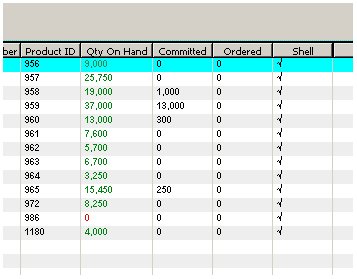
I just had to share this screen shot of the new stock inventory feature as it appears in the stock picker. As you can see (well…. maybe not very clear!) we stock quite a few shells for this customer and now we can track the quantity inside of PrintSmith without having to run a Report Writer report or go to our WebsitesForPrinters website.

I simply took the quantities from the website and entered them into PrintSmith. I will keep you posted on how this is working.

7.2 Installation Tips

Here are few tips I thought I would share with those of you concerned about installing 7.2.

First, do a complete backup of your master, and your key workstations.
Why workstations? If you have to revert back to 7.1 for some reason it will be easier if you have a few backups of some 7.1 workstations. Trust me. Otherwise, you will be starting from scratch on the workstations and you don’t want to do that.

Second, don’t start messing with too many of the new features on the first day. Make sure all of the routine items are working first on everybody’s workstation before you start making changes.
Example:
Don’t add new Sales Categories just yet, there is a small bug with Pricing Methods.

Third, the account history had a major makeover so there a few things to note:
1. The oldest items will now show up first. Click on the Diamond on the right to “flip” the list over so that the most recent items are on top.
2. The find feature has been reset to look for a Posted Date instead of Description. Reset that the Tab to Description.
3. The account history now shows the ENTIRE history and this may take awhile to load, especially for the Walk-In account.
4. Good News! The filters at the bottom now actually work and do what you would expect them to do. (This Month, Last Month, This Year, etc.)
5. You can now bookmark 3 items instead of just one.

Fourth, the Pending List now has the ability to show the Invoice Title. That is huge and long overdue. Add this as soon as you can under the Preferences for the Pending List.

Fifth, there are some minor glitches, but all in all a very smooth release. If you don’t like small, minor glitches then wait for the 7.2.1 updater to be released and you should be safe.
7.2 Shell Inventory for Imprintable Items

The Shells Inventory is one of the most exciting new features that PrintSmith added in my opinion. Why? Now we can double check our inventory with numbers that are posted on our website (from WebsitesForPrinters.com). We used to run reports with Report Writer to check them but now we can just open the Stock Definition window and compare it to the Inventory Management Reports on our website.

Let me give you an example of a form that we imprint for a real estate company. First, we created a special Stock Group for the customer because they have about 15 different forms that we keep in inventory. The special stock group also gives you the added advantage of “hiding” these items from the regular Paper Group list.

Second, we created a stock definition for the item as you normally would but we added this information under the new Inventory tab:
1. Stock is a standard inventory item
2. Stock is a Shell Item
3. We assigned the stock to our real estate account
4. We assigned the stock to a fake vendor with the same name as the real estate account.
(Example: ABC Company would have a vendor called “ABC Company From Inventory”)
5. Enter the current amount on hand in the Stock On Hand field (9,000)
6. Enter the amount you want to keep on hand in the Target Level field (10,000)
7. Enter the Reorder Point level (the lowest amount before you order more)(5,000)
8. Enter the Min. Order Qty. (10,000) This is important: this is the quantity that will print in order to Replenish the inventory. For us, we always want to print the same amount.

The nice thing about this system is that it matches perfectly with WebsitesForPrinters Inventory management!! If you have any questions please shoot me an email. I will continue posting on this topic until I have covered all of the new features. Thanks and have a great day

7.2 Bug Alert: New Sales Categories

This is a Bug Alert for the new sales categories used in conjunction with a Pricing Method. If you setup a new Sales Category in one of the new slots added under preferences (Slots 22-40) and then assign that category to a pricing method the sales will get assigned to category #1 by default. Obviously, this is a fairly major bug.

In the meantime, you can create a charge that is assigned to the new categories (22-40) and the charge will assign the category correctly. I will post more detail when I find out more.

7.2 Stock Inventory Features

One of the coolest things about the new stock inventory features is that if you mark a stock as an inventory item it shows up in BOLD! This is very helpful in my opinion because it makes it easier for our CSR’s to know what items we stock in a glance. In fact, there is now a check box in the stock picker filters called “Only Show Inventoried Stock”. And, right next to that is a check box for “Only Show Shells”.

If you look real close at the job window you will also notice that the Order Stock command is now grayed out for Inventoried items. This prevents you from ordering stock you don’t need and forces you to order the stock from the Auto Order or the Stock Order function. Why is that a good thing? Check out the Auto Order feature: they added 2 more check boxes 1. Pending List Items, 2. Search for LOW STOCK inventory items. Now PrintSmith can find them for you, instead of you trying to find them!

I’ll tell you some more cool things about the stocks in my next post.

7.2 Minor Bug with Stock Order Database

I just discovered a minor bug with the EFI PrintSmith 7.2 Stock Order Database. If you have a stock that is marked as an inventory item and you mark it as received (in full or partial) and then close out of the window, when you open it again and highlight that item EFI PrintSmith will crash. I have tested this on 2 computers on Windows 2000 and Windows XP. (PrintSmith Service has confirmed this as a known issue and will require the next update patch to fix. Look for 7.2.1 in the very near future!)

The solution for now is to use the Select All button and then delete the item, although this may not be possible if you have other active items on the list. Either way, this is a powerful new feature for those who want to track their usage and actual inventory. The only thing that is a bit fuzzy, is tracking the actual waste which cannot always be entered into EFI PrintSmith.

I hope to go into more detail in my next post.

New 7.2 Stock Inventory Module

One of the first things to notice about version 7.2 is the new Inventory Tab in the stock defintions. Just open a stock definition and click on the new inventory tab and you will see a bunch of new fields. To activate these fields and tell PrintSmith that your stock is “inventoried” you need to check the box marked “Stock is a standard inventory item”.

If your item is also a “shell” that gets imprinted later you need to check the box marked “Shell item”. You can then assign it to a specific account if you want.

I suggest that you try starting with a simple stock like 20# Bond and try measuring the inventory for about a week or two to get the feel for the new features. If you use PS to order your stock this new feature changes everything! Previously, you deleted the stock from the stock order database, but now you can track when it comes in. I’ll explain that in my next post.

For now, check it out and give it a try!